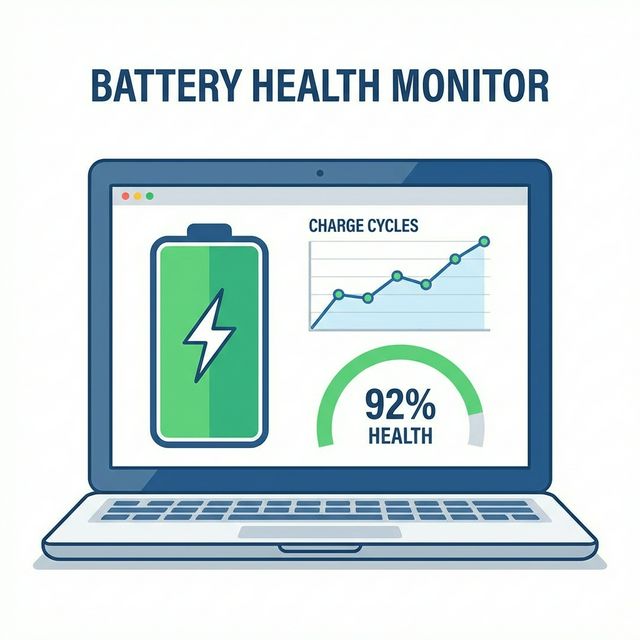
Understanding Battery Health (The Basics)
Battery health isn't complicated, but manufacturers make it seem that way. Here's what actually matters:
Design Capacity – What your battery could hold when new (e.g., 50,000
mWh)
Current Capacity – What it can hold now (e.g., 42,000 mWh)
Battery Health – Current ÷ Design × 100 (84% in this example)
That's it. If your battery health is 84%, it holds 84% of its original charge. Simple math, huge implications.
🎯 Quick Health Check
Use our free battery tester for instant results. No installation, works in your browser, shows health percentage in seconds.
How to Check Battery Health (All Methods)
Method 1: Windows Built-In Tool (Most Accurate)
Windows has a hidden battery report that's surprisingly detailed. Here's how to access it:
- Press Windows + X, select "Terminal (Admin)" or "PowerShell (Admin)"
- Type:
powercfg /batteryreport - Press Enter
- Open the generated HTML file (usually in C:\Users\YourName\battery-report.html)
This report shows everything: design capacity, current capacity, charge cycles, usage history, and battery life estimates. It's the same data technicians use.
Method 2: macOS System Information
Mac users have it easier:
- Hold Option and click the battery icon in menu bar
- Look for "Condition" – Should say "Normal"
- For detailed info: Apple menu → About This Mac → System Report → Power
- Check "Cycle Count" and "Condition"
Method 3: Our Free Online Tester
If you want instant results without command lines, use our battery tester. It shows:
- Current battery percentage
- Charging status
- Time to full charge / time remaining
- Real-time monitoring
What Battery Health Percentages Mean
| Health % | Status | What to Do |
|---|---|---|
| 95-100% | Excellent | Keep doing what you're doing. Battery is like new. |
| 80-94% | Good | Normal wear. No action needed yet. |
| 60-79% | Fair | Noticeable capacity loss. Start planning for replacement in 6-12 months. |
| 40-59% | Poor | Significant degradation. Consider replacement soon. |
| Below 40% | Critical | Replace immediately. Battery may swell or fail. |
7 Ways to Extend Battery Lifespan
Most battery advice online is either wrong or impractical. These seven techniques actually work—I've tested them on dozens of laptops over the years.

1. Keep Charge Between 20-80% (The 20-80 Rule)
Battery degradation is inevitable, but you can slow it down significantly with proper care. For comprehensive battery science and maintenance tips, visit Battery University.

Why it works: Charging to 100% and draining to 0% stresses the battery chemistry. Staying in the middle range reduces wear dramatically.
How to implement:
- Windows: Use "Battery Limit" apps or manufacturer tools (Dell, Lenovo, HP all have them)
- Mac: Enable "Optimized Battery Charging" in System Settings
- Manual: Unplug around 80%, plug in around 20%
I've been doing this for three years. My laptop battery still shows 92% health after 600+ charge cycles. My colleague who charges to 100% daily? 71% health after the same time period.
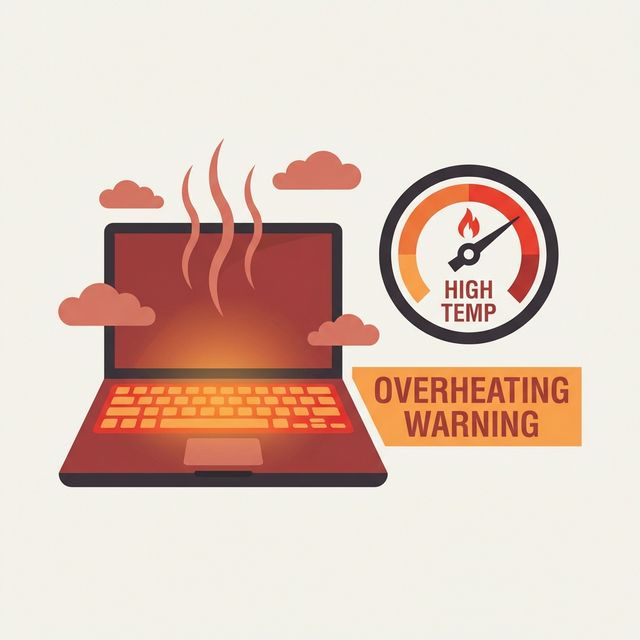
2. Avoid Heat Like It's Battery Poison (Because It Is)
Heat accelerates battery degradation faster than anything else. A battery at 40°C (104°F) degrades twice as fast as one at 25°C (77°F).
Practical heat management:
- Don't use laptop on soft surfaces (beds, couches) that block vents
- Clean dust from vents every 3-6 months
- Avoid direct sunlight on the laptop
- If gaming or rendering, use a cooling pad
- Don't leave laptop in hot cars (seriously, this kills batteries fast)
⚠️ Gaming Laptop Users
Remove the battery when gaming plugged in for extended periods. High performance + charging + heat = rapid battery degradation. Many gaming laptops let you run on AC power alone.
3. Calibrate Battery Every 3 Months
Battery percentage isn't always accurate. Calibration resets the battery meter so it reports correctly.
How to calibrate:
- Charge to 100%
- Keep plugged in for 2 hours
- Unplug and use normally until it shuts down (0%)
- Leave off for 5 hours
- Charge to 100% without interruption
Do this every 3 months. It won't improve battery health, but it ensures your percentage readings are accurate.
4. Use Battery Saver Mode Strategically
Battery saver mode isn't just for emergencies. Using it regularly reduces charge cycles and extends lifespan.
When to enable it:
- Light tasks (browsing, documents, email)
- When you don't need maximum performance
- Anytime you're on battery power
When to disable it:
- Gaming or heavy applications
- Video editing or rendering
- When plugged in and performance matters
5. Store Properly If Not Using for Weeks
Going on vacation? Don't leave your laptop at 100% or 0%. Both damage the battery during storage.
Proper storage procedure:
- Charge to 50-60%
- Shut down completely (not sleep)
- Store in cool, dry place
- If storing 6+ months, charge to 50% every 3 months
6. Update Firmware and Drivers
Manufacturers release battery firmware updates that improve charging algorithms and efficiency. Most people never install them.
How to update:
- Windows: Use manufacturer's update tool (Dell Update, Lenovo Vantage, HP Support Assistant)
- Mac: System Settings → General → Software Update
- Check manufacturer website for BIOS/firmware updates
7. Reduce Screen Brightness
The display is usually the biggest battery drain. Reducing brightness by 50% can extend battery life by 30-40%.
I keep mine at 40-50% indoors. It's plenty bright and saves significant battery. Only crank it up in bright sunlight.
Common Battery Myths (Debunked)
Myth: "You should fully drain the battery regularly"
False. This was true for old nickel-cadmium batteries. Modern lithium-ion batteries hate deep discharges. Draining to 0% regularly shortens lifespan.
Myth: "Leaving it plugged in all the time damages the battery"
Partially true. Modern laptops stop charging at 100% and run on AC power. But staying at 100% constantly does cause slight degradation. The 20-80 rule is still better.
Myth: "You need to use the original charger"
Mostly false. Any quality charger with correct voltage/amperage works fine. Cheap knockoffs can be problematic, but reputable third-party chargers are safe.
Myth: "Closing apps saves battery"
Partially true. Closing apps that actively use CPU/network helps. But force-closing everything constantly can actually use more battery (apps have to restart from scratch).
When to Replace Your Battery
Even with perfect care, batteries eventually die. Here's when replacement makes sense:
Replace If:
- Health below 60% and you need portability
- Battery physically swells (bulging case, trackpad lifting)
- Laptop shuts down unexpectedly despite showing charge
- Won't charge past a certain percentage
- Gets extremely hot during charging
Don't Replace If:
- Health is 70%+ and you mostly use it plugged in
- Laptop is 5+ years old (might be time for new laptop instead)
- Replacement costs more than 40% of laptop's current value
Replacement costs:
- Budget laptops: $30-60
- Mid-range laptops: $60-120
- Premium/gaming laptops: $100-250
- MacBooks: $129-199 (Apple official)
Frequently Asked Questions
Final Thoughts
Battery health is critical for laptop longevity. Follow the 20-80 rule, avoid heat, and calibrate periodically. For more laptop maintenance, see our overheating fix guide and SSD upgrade guide.
I've seen laptops with 95% battery health after 3 years, and others at 60% after 1 year. The difference? How they were treated.
Start by checking your current battery health. Then implement the tips that fit your usage pattern. Even adopting 2-3 of these practices makes a huge difference.
Your battery will thank you. More importantly, your wallet will too—battery replacements aren't cheap.