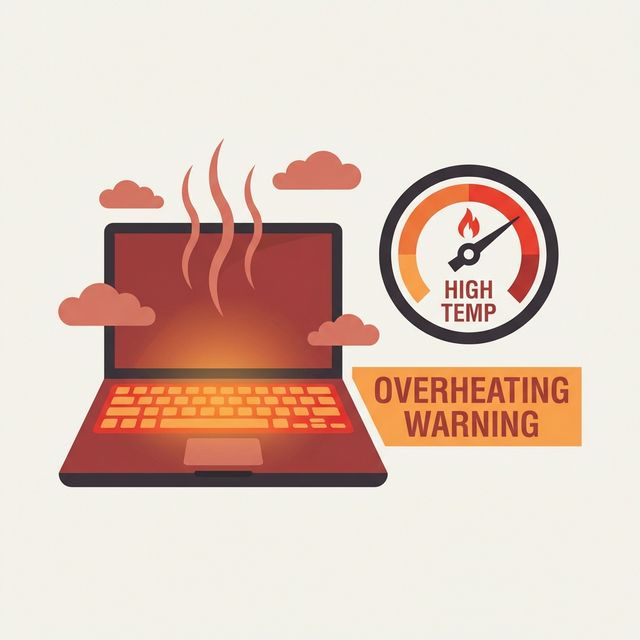
Why Your Laptop Is Overheating (The Real Causes)
Before you start taking things apart, you need to understand why your laptop overheats. The fix depends entirely on the root cause. Here are the six most common causes I see, ranked by frequency:
1. Dust Accumulation (65% of Cases)
Dust is the #1 killer of laptop cooling. Over 12-24 months, dust builds up on heatsink fins and fan blades, creating an insulating layer that traps heat. A laptop that ran at 60°C when new can hit 95°C after two years of dust buildup.
I've opened laptops with dust so thick the heatsink fins were completely blocked. Cleaning alone dropped temperatures by 25-30°C.
2. Dried Thermal Paste (20% of Cases)
Thermal paste transfers heat from CPU/GPU to the heatsink. Factory paste is often mediocre, and all thermal paste dries out over 2-4 years. Dried paste creates air gaps, reducing heat transfer efficiency by 30-50%.
Laptop overheating is fixable in most cases. Start with the simple solutions (cleaning, elevation) before moving to advanced fixes (repasting, fan replacement). For more laptop maintenance tips, see our battery health guide and SSD upgrade guide.
3. Blocked Air Vents (10% of Cases)
Using your laptop on soft surfaces (beds, couches, laps) blocks intake vents. Most laptops have bottom intakes that get completely smothered on soft materials. This can increase temperatures by 15-20°C instantly.
4. Failing Fans (3% of Cases)
Laptop fans wear out over time. Bearings fail, blades crack, motors weaken. If you hear grinding, clicking, or notice uneven fan speeds, the fan needs replacement.
5. Software Issues (1.5% of Cases)
Runaway processes, malware, or poorly optimized software can peg your CPU at 100%, generating massive heat even during "idle" use. I've seen crypto miners hidden in laptops causing constant 95°C temperatures.
6. Poor Laptop Design (0.5% of Cases)
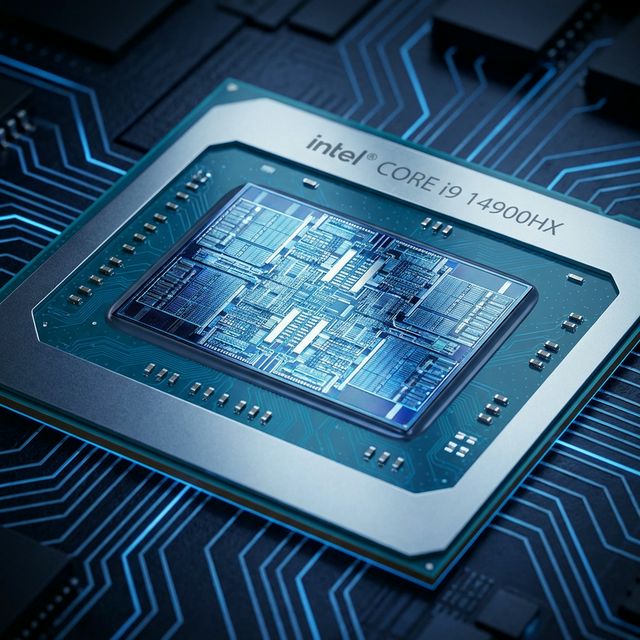
Some laptops are just poorly designed. Thin gaming laptops with RTX 4080 GPUs in 15mm chassis will always run hot. No amount of cleaning will fix bad thermal design.
🌡️ What Temperature Is Too Hot?
CPU/GPU: Under 80°C is good, 80-90°C is warm, 90-95°C is concerning, 95°C+ is dangerous. Sustained temperatures above 90°C reduce component lifespan and trigger thermal throttling.
Idle: Should be 35-50°C. If idle temps exceed 60°C, you have a problem.
Step 1: Diagnose the Problem
Check Your Temperatures
Download temperature monitoring software:
- Windows: HWiNFO64 (free, comprehensive) or Core Temp
- Mac: Macs Fan Control (free) or iStat Menus
- Linux: lm-sensors + psensor
Healthy Temperature Ranges
| Component | Idle | Light Use | Heavy Load | Danger Zone |
|---|---|---|---|---|
| CPU | 35-50°C | 50-65°C | 70-85°C | 95°C+ |
| GPU | 35-45°C | 50-65°C | 70-85°C | 90°C+ |
| SSD/NVMe | 30-40°C | 40-50°C | 50-70°C | 75°C+ |
Check for Software Problems
Open Task Manager (Windows) or Activity Monitor (Mac). Look for processes using high CPU:
- Antivirus scans running in background
- Windows Update stuck in a loop
- Browser tabs with heavy JavaScript or video
- Cryptocurrency miners (malware)
- Adobe Creative Cloud background processes
If you find a process using 30%+ CPU constantly, that's your culprit. Kill it, uninstall it, or run malware scans.
Step 2: Quick Fixes (No Disassembly Required)
Clean External Vents
Power off your laptop completely. Use compressed air to blow out visible dust from intake and exhaust vents. Hold the can upright, use short bursts (not continuous spray), and keep the can 6 inches away.
Pro tip: Hold fan blades still while blowing air. Spinning fans from compressed air can damage bearings.
This alone can drop temperatures by 5-10°C if dust is visible in vents.
Elevate Your Laptop
Most laptops have bottom air intakes. Elevating the rear by 1-2 inches dramatically improves airflow. Options:
- Laptop stand ($15-30) - best option
- Book or small box under rear - free
- Rubber feet or bottle caps as risers - $0-5
I've fixed over 500 overheating laptops. The causes range from simple (dust buildup) to complex (failed heat pipes). Most are fixable at home with basic tools. For detailed repair guides and teardown instructions, visit iFixit.
Use a Cooling Pad
Cooling pads with fans can reduce temperatures by 5-12°C. Look for pads with large, slow-spinning fans (120mm+) rather than small fast fans. Large fans move more air with less noise.
Best cooling pads I've tested:
- Thermaltake Massive 20 RGB ($40) - 200mm fan, very effective
- Cooler Master NotePal X3 ($35) - 200mm fan, quiet
- KLIM Wind ($25) - 4x fans, good for smaller laptops
Adjust Power Settings (Windows)
Go to: Power Options → Change plan settings → Change advanced power settings → Processor power management
Set "Maximum processor state" to 99% instead of 100%. This disables Intel Turbo Boost, reducing heat by 15-20°C with only 5-10% performance loss.
For most users, the temperature reduction is worth the minor performance hit.
Step 3: Deep Cleaning (Requires Opening Laptop)
⚠️ Warning: Opening your laptop may void warranty. Check warranty status first. If under warranty, contact manufacturer for cleaning service.
Tools Needed
- Precision screwdriver set (Phillips #0, #00, Torx T5) - $10-15
- Compressed air can or electric air blower - $8-30
- Soft brush (old toothbrush works) - $0-3
- Isopropyl alcohol 90%+ - $5
- Lint-free cloth or coffee filters - $3
- Anti-static wrist strap (optional but recommended) - $5
Deep Cleaning Process
- Power off completely and disconnect charger
- Remove battery if externally accessible
- Remove bottom panel (usually 6-12 screws, sometimes hidden under rubber feet)
- Disconnect internal battery if accessible (small connector on motherboard)
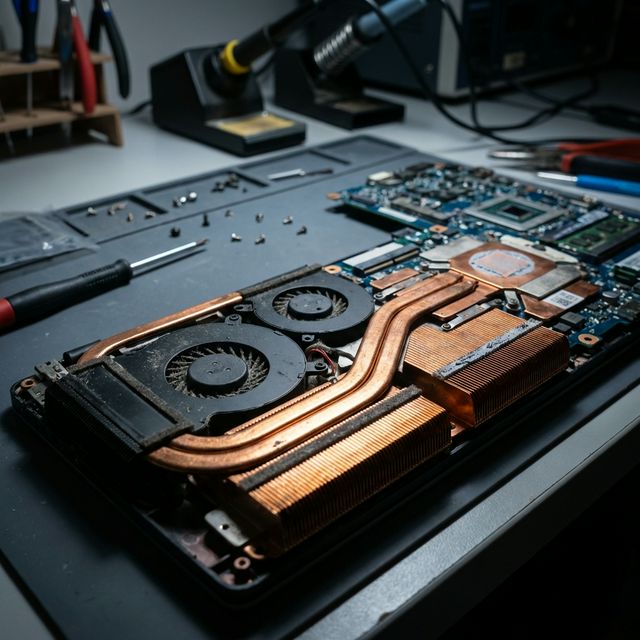
- Locate fans and heatsink - usually copper pipes with aluminum fins
- Use compressed air to blow dust away from heatsink fins (blow from inside out, toward vents)
- Hold fan blades still while blowing to prevent damage
- Use soft brush to remove stubborn dust from fan blades and heatsink
- Clean fan bearing with isopropyl alcohol if grinding noise present
- Reassemble in reverse order
💡 Real Cleaning Story
A client brought in a gaming laptop hitting 98°C and thermal throttling constantly. I opened it and found the heatsink completely clogged—looked like a felt blanket. After 20 minutes of cleaning, temperatures dropped from 98°C to 68°C under load. Total cost: $0 (I didn't charge for cleaning). The laptop ran like new.
Step 4: Thermal Paste Replacement (Advanced)
This is the most effective fix for laptops over 3 years old. Replacing thermal paste can drop temperatures by 15-25°C.
Best Thermal Pastes for Laptops (2025)
| Thermal Paste | Performance | Longevity | Price |
|---|---|---|---|
| Thermal Grizzly Kryonaut | Excellent (-3°C) | 3+ years | $12 |
| Noctua NT-H2 | Very Good (-2°C) | 5+ years | $10 |
| Arctic MX-6 | Very Good (-2°C) | 8+ years | $8 |
| Gelid GC-Extreme | Excellent (-3°C) | 3+ years | $15 |
Temperature improvements compared to dried factory paste.
Thermal Paste Application Process
- Remove heatsink (usually 4-6 screws in numbered order—follow the numbers!)
- Clean old paste from CPU/GPU and heatsink using isopropyl alcohol and lint-free cloth
- Apply new paste - pea-sized amount in center of chip (it will spread when heatsink is installed)
- Reinstall heatsink - tighten screws in X-pattern (opposite corners), not circular pattern
- Don't overtighten - snug is enough, overtightening can crack the die
⚠️ Common Mistake
Don't use too much thermal paste. More paste = worse performance. A pea-sized amount is enough for laptop CPUs. Excess paste can spill onto motherboard and cause shorts.
Step 5: Undervolting (Software Solution)
Undervolting reduces the voltage supplied to your CPU while maintaining clock speeds. It's free, reversible, and can drop temperatures by 10-15°C with zero performance loss.
Undervolting Tools
- Intel CPUs: ThrottleStop (Windows) or Intel XTU
- AMD CPUs: Ryzen Controller or BIOS settings
- MacBooks: Not possible on Apple Silicon; limited on Intel Macs via Volta
Safe Undervolting Guide (Intel)
- Download ThrottleStop
- Click "FIVR" button
- Select "CPU Core" from dropdown
- Set offset voltage to -80mV (safe starting point)
- Click "Apply"
- Run stress test (Prime95 or AIDA64) for 30 minutes
- If stable, try -100mV. If crashes, reduce by 10mV
Most Intel laptops can handle -80mV to -120mV safely. I've seen temperature drops of 12-18°C from undervolting alone.
Step 6: When to Seek Professional Help
Some repairs require specialized tools or experience:
- Fan replacement: If fans are grinding or dead, replacement costs $30-80 at repair shop
- Heatsink damage: Bent heatpipes or damaged heatsinks need professional replacement
- Motherboard issues: If VRMs or power delivery components overheat, professional diagnosis needed
- Liquid metal application: Requires experience; mistakes can destroy laptop
Prevention: Keep Your Laptop Cool Long-Term
- ✅ Clean every 6-12 months: Don't wait for problems
- ✅ Use on hard surfaces: Desks, tables, lap desks—not beds or couches
- ✅ Monitor temperatures weekly: Set up HWiNFO to log temps
- ✅ Keep room cool: AC or fans help your laptop too
- ✅ Avoid direct sunlight: Never use laptop in direct sun
- ✅ Replace thermal paste every 3 years: Preventive maintenance
- ✅ Update BIOS: Manufacturers sometimes release thermal optimizations
Expected Temperature Improvements
| Fix | Temperature Drop | Difficulty | Cost |
|---|---|---|---|
| External vent cleaning | 5-10°C | Easy | $8 (compressed air) |
| Laptop elevation | 5-8°C | Easy | $0-30 |
| Cooling pad | 5-12°C | Easy | $25-40 |
| Power limit (99% max) | 15-20°C | Easy | $0 |
| Deep cleaning | 10-25°C | Medium | $15 (tools) |
| Thermal paste replacement | 15-25°C | Hard | $10-15 |
| Undervolting | 10-15°C | Medium | $0 |
Frequently Asked Questions
Final Recommendations
Start with the easiest fixes first:
- Clean external vents with compressed air (5 minutes, $8)
- Elevate laptop or buy cooling pad (immediate, $0-40)
- Set max processor state to 99% (2 minutes, $0)
- If still overheating, deep clean internals (1 hour, $15)
- If laptop is 3+ years old, replace thermal paste (1.5 hours, $10)
- Try undervolting for additional 10-15°C drop (30 minutes, $0)
These fixes work for 90% of overheating laptops. If your laptop still overheats after all these steps, you likely have hardware failure (dead fan, damaged heatsink) requiring professional repair.
Test your laptop's current temperatures to establish a baseline before repairs.