
Why Testing Laptop Hardware Matters
I learned this lesson the hard way back in 2019. Bought what seemed like a great deal on a gaming laptop—powerful specs on paper, decent price. Three months later, the GPU started artifacting during games. Turns out the cooling system was faulty from day one. The seller? Long gone. The warranty? Void because I'd opened it to check.
That $800 mistake taught me something valuable: never trust specs alone. Real-world testing reveals issues that spec sheets hide. Dead pixels, thermal throttling, battery degradation—these problems don't show up in product descriptions.
💡 Pro Tip
Always test hardware in the environment you'll actually use it. If you're buying for gaming, run games. For video editing, test rendering. Synthetic benchmarks don't tell the whole story.
Testing laptop hardware before buying prevents expensive mistakes. Make sure to also check which laptop brands are most reliable and review our best laptops for programming guide if you're a developer.
Essential Hardware Components to Test
Not all laptop components are created equal. Some failures are obvious immediately, others take time to surface. Here's what actually matters, ranked by importance:
1. Display Quality (Most Critical)
You'll stare at this screen for hours daily. A bad display ruins everything else, no matter how powerful the internals are.
What to check:
- Dead pixels – Run a full-screen color test. Black, white, red, green, blue. Even one stuck pixel in the center is annoying forever.
- Backlight bleeding – Open a black image in a dark room. Look for bright spots at the edges. Some bleeding is normal, but excessive amounts mean poor quality control.
- Color accuracy – Open photos you know well. Do skin tones look natural? Is white actually white, or does it have a yellow/blue tint?
- Viewing angles – Tilt the screen. Colors shouldn't wash out or invert at normal viewing angles.
🔧 Quick Test Method
Use our free dead pixel tester to cycle through solid colors. Takes 2 minutes and catches issues that are invisible during normal use.
2. CPU Performance
The processor is your laptop's brain. Modern CPUs rarely fail outright, but thermal issues and throttling are common, especially in thin laptops.

Real-world testing approach:
- Open 20+ browser tabs with heavy websites (YouTube, news sites, web apps)
- Run a stress test for 10-15 minutes
- Monitor temperatures—anything above 95°C under load is concerning
- Check if performance drops after heating up (thermal throttling)
Before buying any laptop, you need to verify the actual hardware matches what's advertised. I've seen too many cases where "Intel Core i7" turns out to be a 5-year-old model, or "16GB RAM" is actually soldered and non-upgradeable. You can verify processor specifications on Intel ARK for Intel CPUs or AMD's official site for AMD processors.
3. RAM and Storage
Run benchmarks to verify performance matches expectations. Compare your results against published benchmarks for the same model using tools like PassMark Software.
Memory testing:
- Check total RAM matches advertised specs
- Verify actual usable RAM (some is reserved for integrated graphics)
- Run memory-intensive tasks—open large files, multiple programs simultaneously
- Watch for system slowdowns or crashes
Storage verification:
- Confirm SSD type (NVMe is faster than SATA)
- Check actual capacity (a "512GB" drive shows ~476GB usable—that's normal)
- Test read/write speeds if possible
- Look for existing wear on used SSDs
4. GPU Testing (For Gaming/Creative Work)
If you're not gaming or doing graphics work, integrated graphics are fine. But if you need dedicated GPU power, test it thoroughly.
What actually matters:
- Run actual games or rendering software, not just benchmarks
- Monitor temperatures during extended sessions
- Check for artifacts, screen tearing, or crashes
- Verify VRAM amount matches specs
⚠️ Common GPU Scam
Some sellers flash fake VRAM amounts. A "8GB" GPU might actually have 4GB. Use diagnostic tools to verify actual hardware specs, not what Windows reports.
5. Battery Health
This is huge for used laptops. Batteries degrade over time, and replacement costs $50-200 depending on the model.
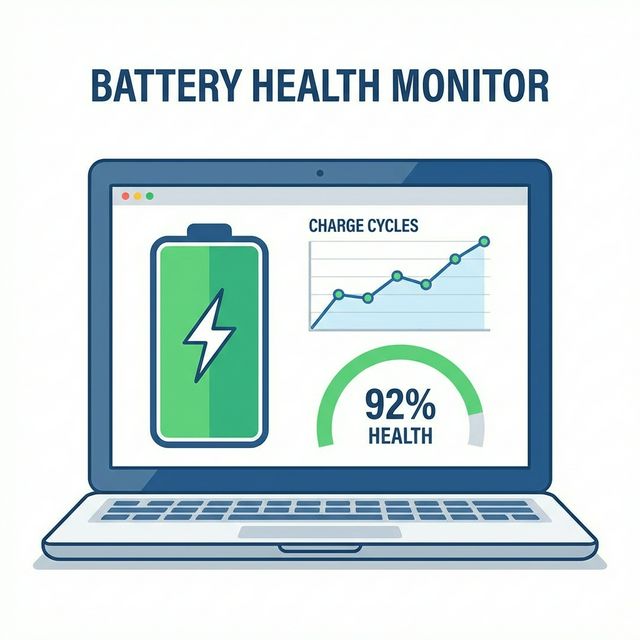
Battery testing checklist:
- Check current capacity vs. design capacity (80%+ is acceptable for used)
- Run on battery for 30 minutes, note the drain rate
- Verify charging works properly and reaches 100%
- Look for physical swelling (bulging battery = immediate safety hazard)
A friend bought a "like new" laptop with 45% battery health. Lasted 90 minutes on a charge. Seller claimed it was "normal." It wasn't. Always check battery health before buying used.
Step-by-Step Testing Process
Here's my exact testing routine. Takes about 30 minutes but catches 95% of hardware issues:
| Test | Duration | What It Reveals |
|---|---|---|
| Visual inspection | 2 min | Physical damage, wear, build quality |
| Display test | 3 min | Dead pixels, backlight issues, color accuracy |
| Keyboard & trackpad | 2 min | Stuck keys, trackpad responsiveness |
| Port functionality | 3 min | USB, HDMI, audio jack functionality |
| CPU stress test | 10 min | Thermal performance, throttling |
| RAM check | 2 min | Capacity, stability |
| Storage verification | 2 min | Type, capacity, health |
| Battery test | 5 min | Health, charging, drain rate |
Free Tools for Hardware Testing
You don't need expensive software. Here's what I actually use:
- Our Hardware Tester – Free online tool for quick diagnostics. No installation needed.
- HWiNFO – Detailed sensor monitoring for Windows
- CrystalDiskInfo – SSD/HDD health checker
- Prime95 – CPU stress testing
- FurMark – GPU stress test (use carefully, it's intense)
Red Flags to Watch For
After testing hundreds of laptops, these warning signs almost always mean trouble:
- Seller rushes you – "Someone else is interested, decide now!" means they're hiding something
- Won't let you test thoroughly – If they won't give you 30 minutes to test, walk away
- Specs don't match – Listed as 16GB RAM but shows 8GB? Scam or mistake, either way, no deal
- Excessive heat immediately – Laptop shouldn't be hot just sitting idle
- Strange noises – Clicking, grinding, or buzzing sounds mean hardware failure
- Modified BIOS settings – Someone tweaked settings to hide problems
Frequently Asked Questions
Final Thoughts
Testing laptop hardware isn't paranoia—it's smart shopping. That 30 minutes of testing can save you hundreds in repairs or replacement costs. I've seen too many people skip this step and regret it later.
Remember: sellers who have nothing to hide welcome thorough testing. If someone gets defensive about you checking their laptop, that's your answer right there.
Start with our free hardware testing tool. It covers the basics without installing anything. For deeper diagnostics, use the tools mentioned above. And most importantly—trust your gut. If something feels off, it probably is.
🎯 Quick Action Steps
- Test display for dead pixels and backlight bleeding
- Run CPU stress test for 10+ minutes
- Verify RAM and storage match advertised specs
- Check battery health on used laptops
- Test all ports and peripherals