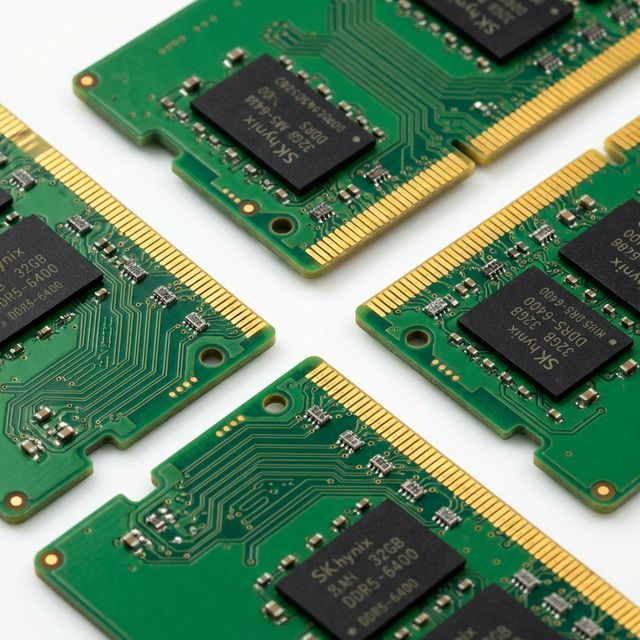
Step 1: Check If Your Laptop Can Be Upgraded
Critical first step: Not all laptops have upgradeable RAM. Many modern ultrabooks have memory soldered directly to the motherboard. Buying RAM for a soldered laptop = wasted money.
How to Check RAM Upgradeability
Method 1: Check Manufacturer Specs
Google: "[Your laptop model] RAM upgrade" or "[Model] service manual PDF"
Look for: "User-replaceable memory," "SO-DIMM slots," or "Memory slots: 2"
Red flags: "Onboard memory," "Soldered RAM," "Non-upgradeable"
Method 2: Use System Information Tools
- Windows: Download CPU-Z (free) → Memory tab → shows slots used/available
- Mac: About This Mac → Memory → shows if upgradeable (most M1/M2/M3 Macs are NOT upgradeable)
- Linux: Run:
sudo dmidecode --type 17
Method 3: Physical Inspection
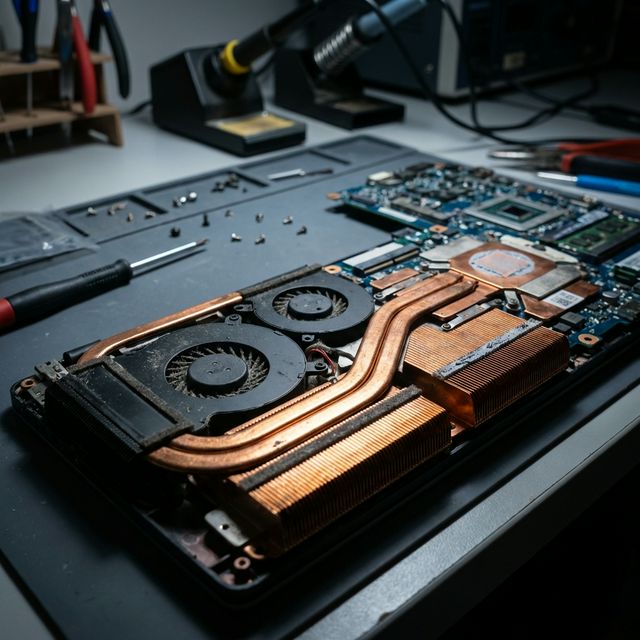
Remove bottom panel (if accessible). Look for rectangular modules with chips—those are RAM sticks. If you see chips soldered directly to motherboard with no removable modules, RAM is not upgradeable.
⚠️ Laptops with Soldered RAM (Cannot Upgrade)
- All MacBook Air M1/M2/M3
- All MacBook Pro M1/M2/M3 (14" and 16")
- Microsoft Surface Laptop (all models)
- Dell XPS 13 (2020+)
- HP Spectre x360 (most models)
- Lenovo Yoga Slim series
- ASUS ZenBook (most ultrabooks)
If you have one of these, you're stuck with the RAM you bought. Choose wisely when purchasing.
Step 2: Determine Current RAM Configuration
Before buying new RAM, you need to know:
- Current capacity (8GB, 16GB, etc.)
- RAM type (DDR4, DDR5)
- Speed (3200MHz, 5600MHz)
- Number of slots (1, 2, or 4)
- Slots used vs available
Check Current RAM (Windows)
- Download and run CPU-Z (free)
- Go to "Memory" tab:
- Type: DDR4 or DDR5
- Size: Total capacity
- DRAM Frequency: Speed (multiply by 2 for marketed speed)
- Go to "SPD" tab:
- Slot #: Shows which slots are populated
- Module Size: Capacity per stick
Check Current RAM (Mac)
- Click Apple menu → About This Mac
- Click "Memory" (if available—M-series Macs won't show this)
- Shows: Total memory, type, speed, slots used
Understanding RAM Configurations
| Configuration | What It Means | Upgrade Path |
|---|---|---|
| 8GB (1×8GB, 1 slot used) | One 8GB stick, one empty slot | Add another 8GB stick → 16GB total |
| 8GB (2×4GB, 2 slots used) | Two 4GB sticks, no empty slots | Replace both with 2×8GB → 16GB total |
| 16GB (1×16GB, 1 slot used) | One 16GB stick, one empty slot | Add another 16GB stick → 32GB total |
| 16GB (2×8GB, 2 slots used) | Two 8GB sticks, no empty slots | Replace both with 2×16GB → 32GB total |
Step 3: Choose the Right RAM
RAM Type: DDR4 vs DDR5
Critical: DDR4 and DDR5 are NOT interchangeable. Your laptop supports one or the other, never both.

- Intel 11th Gen and older: DDR4
- Intel 12th-14th Gen: DDR4 or DDR5 (depends on laptop model)
- AMD Ryzen 5000 series: DDR4
- AMD Ryzen 7000/8000 series: DDR5
RAM Speed Recommendations
| RAM Type | Recommended Speed | Notes |
|---|---|---|
| DDR4 | 3200MHz | Sweet spot for price/performance |
| DDR5 | 5600MHz | Good balance, widely compatible |
Pro tip: Faster RAM (DDR4-3600, DDR5-6400) provides minimal real-world benefit in laptops (2-5% performance gain). Save money and buy standard speeds.
Best RAM Brands (2025)
Based on 300+ upgrades, these brands have the lowest failure rates:
- Crucial: Best value, excellent compatibility, lifetime warranty
- Kingston: Reliable, widely available, good pricing
- Corsair: Premium quality, higher price
- Samsung: OEM quality, sometimes hard to find retail
- G.Skill: Good for high-performance builds
Avoid: Unknown Chinese brands on Amazon. I've seen 30% failure rates with generic RAM.
How Much RAM Do You Need?
| Use Case | Minimum | Recommended | Overkill |
|---|---|---|---|
| Web browsing, Office | 8GB | 16GB | 32GB+ |
| Photo editing | 16GB | 32GB | 64GB+ |
| Video editing (1080p) | 16GB | 32GB | 64GB+ |
| Video editing (4K) | 32GB | 64GB | 128GB |
| Gaming | 16GB | 32GB | 64GB+ |
| Programming/VMs | 16GB | 32GB | 64GB+ |
Step 4: Installation Process
Tools Needed
- Precision screwdriver (Phillips #0 or #00) - $5-10
- Anti-static wrist strap (optional but recommended) - $5
- Plastic pry tool or guitar pick (for some laptops) - $3
Step-by-Step Installation
- Power off completely - Not sleep, not hibernate. Full shutdown.
- Unplug charger and remove external devices
- Remove battery if externally accessible (most modern laptops have internal batteries)
- Ground yourself - Touch metal surface or wear anti-static strap
- Remove bottom panel:
- Remove all visible screws (some may be hidden under rubber feet)
- Use plastic pry tool to gently separate panel from chassis
- Work slowly around edges—clips break easily
- Locate RAM slots - Usually near center of motherboard, covered by metal shield or visible directly
- Remove existing RAM (if replacing):
- Push metal clips on sides OUTWARD simultaneously
- RAM stick will pop up at 30-45° angle
- Pull gently straight out
- Install new RAM:
- Align notch in RAM stick with notch in slot (only fits one way)
- Insert at 30-45° angle
- Press down firmly until clips snap into place on both sides
- You should hear/feel two distinct clicks
- Reassemble:
- Replace bottom panel
- Reinstall all screws
- Reconnect battery (if disconnected)
- Power on and verify
💡 Common Installation Mistake
The #1 mistake: Not pushing RAM down hard enough. You need firm pressure until BOTH clips snap. If only one clip engages, the laptop won't boot. Don't be afraid to use force—RAM slots are sturdy.
Step 5: Verify Installation
Windows Verification
- Right-click Start → System
- Check "Installed RAM" - should show new total
- If it doesn't, shut down and reseat RAM
Mac Verification
- Apple menu → About This Mac
- Check Memory section
- Should show new capacity and configuration
Run Memory Test
Windows: Windows Memory Diagnostic
- Search "Windows Memory Diagnostic"
- Choose "Restart now and check for problems"
- Let it run (takes 10-20 minutes)
- Check results after restart
Alternative: MemTest86 (more thorough, bootable USB)
Troubleshooting Common Issues
Laptop Won't Boot After RAM Install
Causes and fixes:
- RAM not fully seated: Reseat RAM, ensure both clips engaged
- Incompatible RAM: Double-check DDR4 vs DDR5, speed compatibility
- Faulty RAM: Try one stick at a time to identify bad module
- Dirty contacts: Clean RAM contacts with isopropyl alcohol
System Shows Less RAM Than Installed
Example: Installed 16GB, system shows 8GB
- One stick not detected: Reseat both sticks
- Mismatched RAM: Mixing different speeds/brands can cause issues
- 32-bit OS: Windows 32-bit can only use 4GB (upgrade to 64-bit)
Blue Screen or Random Crashes
- Faulty RAM: Run MemTest86, RMA if errors found
- Wrong voltage: Some RAM requires XMP/DOCP profiles (rare in laptops)
- Overheating: Ensure laptop vents aren't blocked
Expected Performance Improvements
| Upgrade | Improvement | Best For |
|---|---|---|
| 4GB → 8GB | Massive (50-100%) | Basic tasks, web browsing |
| 8GB → 16GB | Significant (20-40%) | Multitasking, light creative work |
| 16GB → 32GB | Moderate (10-25%) | Heavy multitasking, VMs, video editing |
| 32GB → 64GB | Minimal (5-10%) | 4K video editing, large datasets |
Frequently Asked Questions
Final Recommendations
Best RAM for Most Users: Crucial 16GB (2×8GB) DDR4-3200 - $45-55
Best Budget Option: Kingston 16GB (2×8GB) DDR4-3200 - $40-50
Best Premium Option: Corsair 32GB (2×16GB) DDR5-5600 - $110-130
Best for Content Creators: Crucial 32GB (2×16GB) DDR4-3200 - $75-90
RAM upgrades are the best performance-per-dollar upgrade for most laptops. $50-100 can transform performance. Before upgrading, read our DDR5 vs DDR4 comparison to choose the right type. Also consider upgrading to an SSD for even better performance. For $50-100, you can extend your laptop's useful life by 2-3 years. Just make sure your laptop supports upgrades before buying.
Test your current RAM performance to see if an upgrade is worthwhile.